User Management
Managing your team is simple in LISA.
This section will guide you through adding, updating, and removing users, assigning roles, and managing account statuses.
Adding a New User
To invite a new team member into your institution:
-
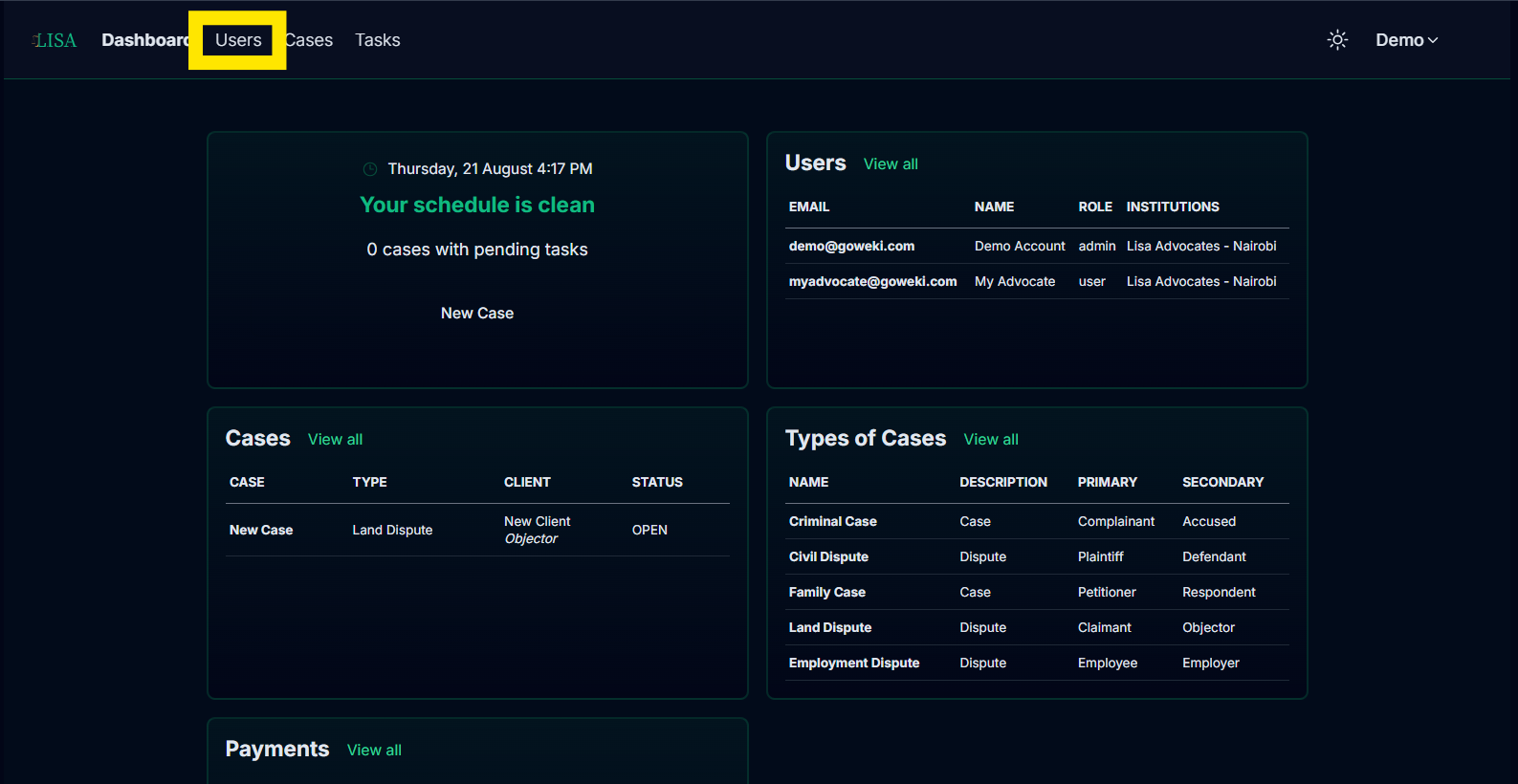
Select Users from main navigation menu in the Dashboard.
-
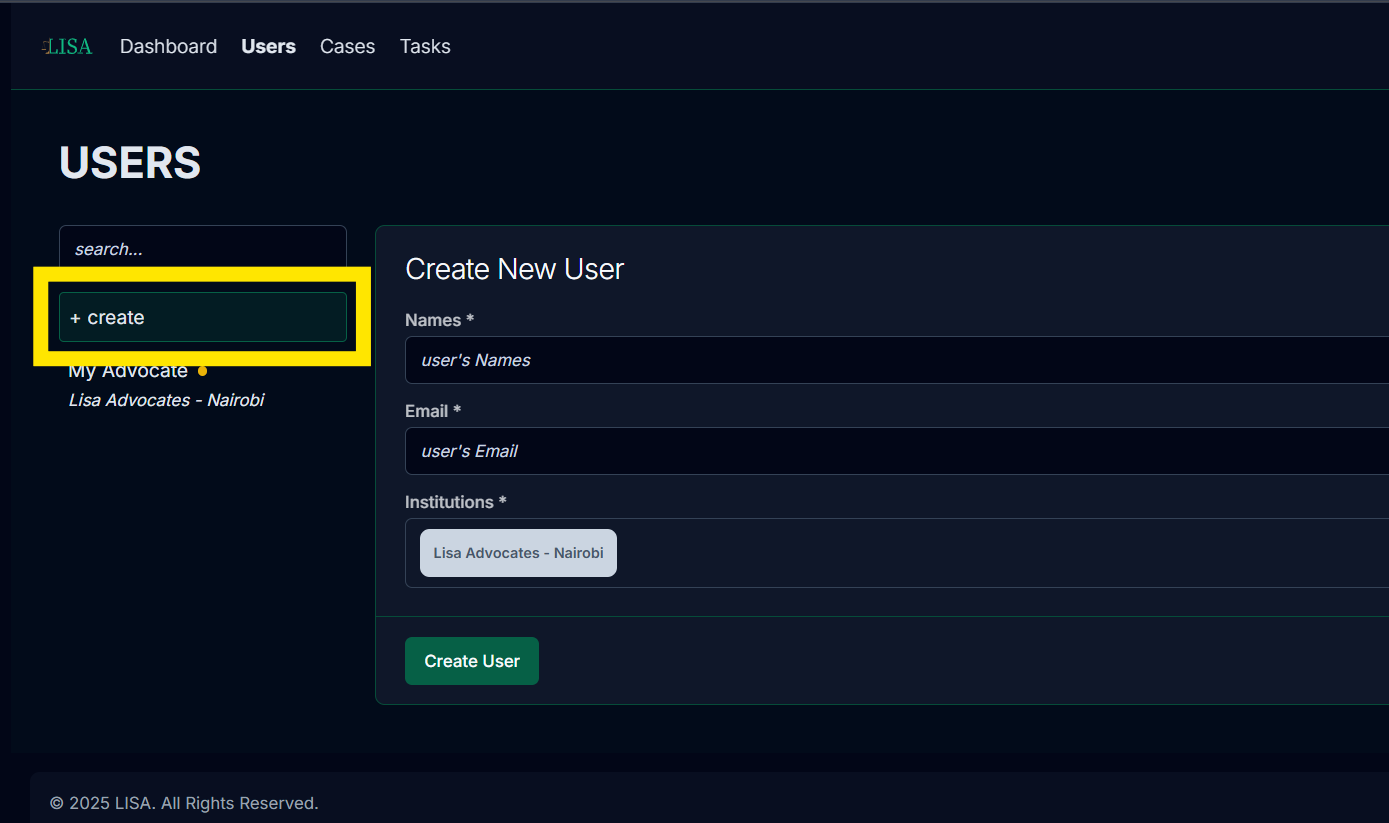
Click on the + create button.
-
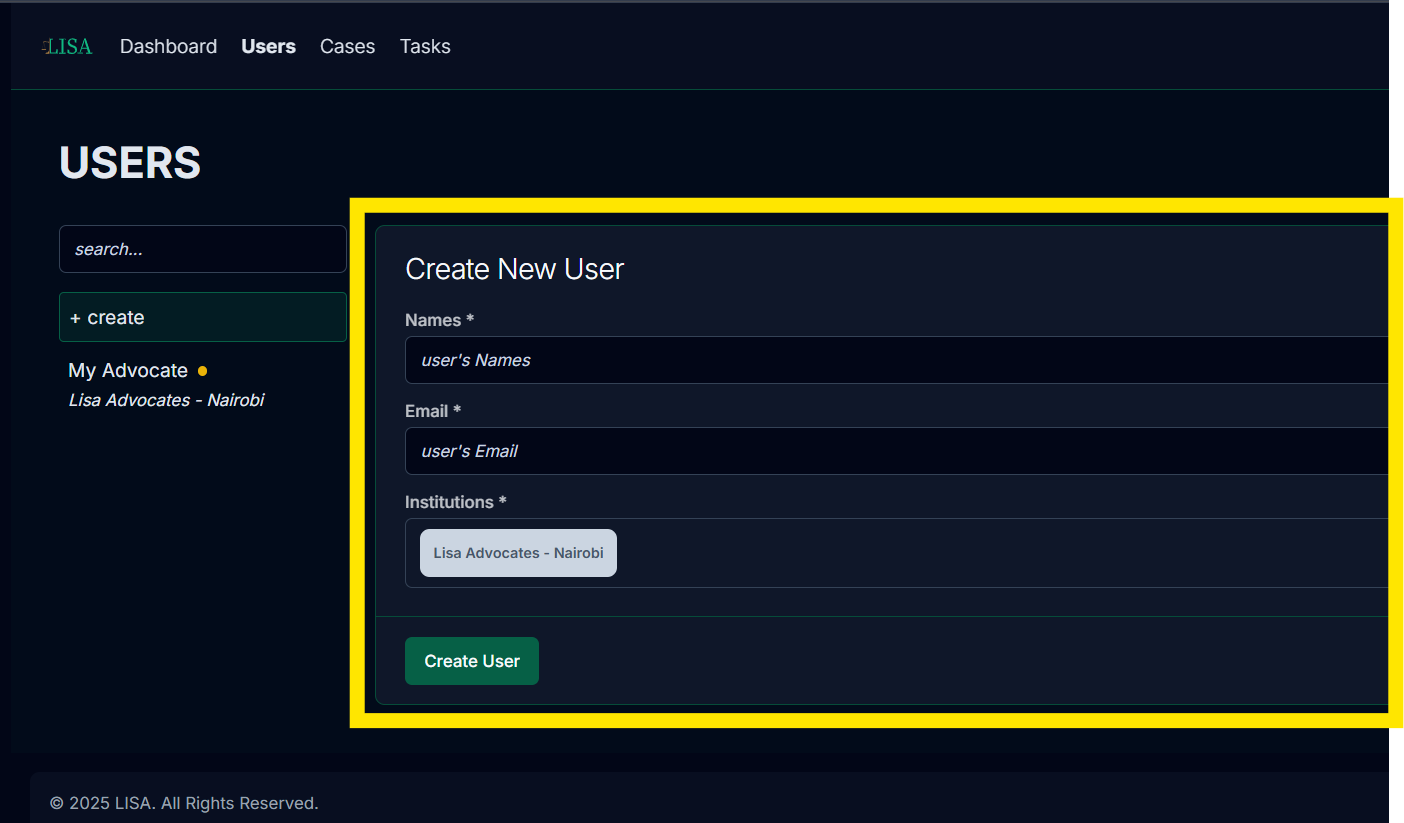
Fill in the user’s details:
-
Full Name
-
Email Address
-
** Other otional fields
-
-
Click Create User.
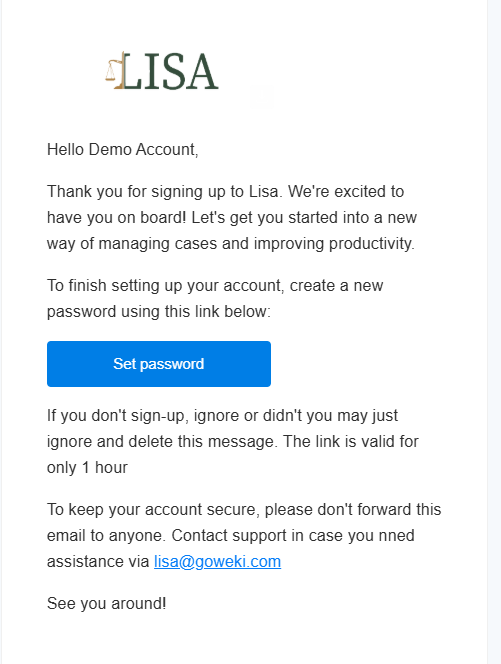
The user will receive an email or WhatsApp message with a link to log in.
View the video below for an end-to-end walkthrough: 🎥
User Roles
Each user has a role that defines their permissions within the institution:
- Admin – Can manage users, subscriptions, and all settings.
- Advocate – Can create and manage cases, communicate with clients.
- Lawyer – Works on assigned cases and tasks.
📸 [Insert screenshot: Role selection dropdown]
🎥 [Insert video: Understanding roles in Lisa CMS]
Updating a User
Sometimes you’ll need to change a user’s details or role:
- Open Settings > Users.
- Find the user in the list.
- Click the Edit icon.
- Update their details or switch their role.
- Save your changes.
📸 [Insert screenshot: Editing a user]
🎥 [Insert video: How to update a user profile]
Deactivating a User
When a team member leaves the institution, you can deactivate their account.
- Go to Settings > Users.
- Locate the user.
- Click Deactivate.
- Confirm the action.
⚠️ Deactivated users cannot log in, but their past cases, tasks, and records remain for auditing.
📸 [Insert screenshot: User deactivation]
🎥 [Insert video: Deactivating a user]
User Status
Each user account has a status:
- ✅ Active – The user can log in and work normally.
- ⏸️ Dormant – The account exists but is not verified or not in use.
- ❌ Inactive – The account is disabled.
📸 [Insert screenshot: User list showing statuses]
Resetting Passwords
If a user forgets their password:
- They can click Forgot Password on the login screen.
- A reset link will be sent via Email or WhatsApp, depending on their account setup.
- After resetting, they can log back in.
📸 [Insert screenshot: Forgot password page]
🎥 [Insert video: Password reset process]
Tips for Managing Users
- Always keep contact details (email/phone) up to date.
- Assign roles carefully to control access levels.
- Deactivate accounts promptly when staff leave.
📸 [Insert screenshot: User management overview page]
🎥 [Insert video: Best practices for user management]
Summary
With User Management, you can:
- Invite new team members.
- Assign roles and responsibilities.
- Update user information.
- Deactivate users when necessary.
This ensures your institution stays organized and secure.